Cube Composer · 3 min read
Cube Composer Guide: Solve the First Two Puzzles
Cube Composer turns a shape puzzle into a short program. Your job is to choose functions that transform the starting cubes into the target shown on the right. You do not move individual cubes by hand. Instead, each function changes the arrangement or colours according to its symbol. Start with the first two tutorial puzzles: they separate changing a colour from removing a colour.
Play Cube ComposerRead the three parts of the puzzle
The main drawing shows the starting shape and the transformations produced by your program. The smaller drawing beside Goal is the exact arrangement you need to reproduce. Available functions sit in the left list, while the list on the right contains your current program.
Click an available function to add it, or drag it into the program area. Click a selected function to remove it. When you use several functions, drag their entries into the order you want. Watch the intermediate drawings after each change: they show where your reasoning first diverges from the target.
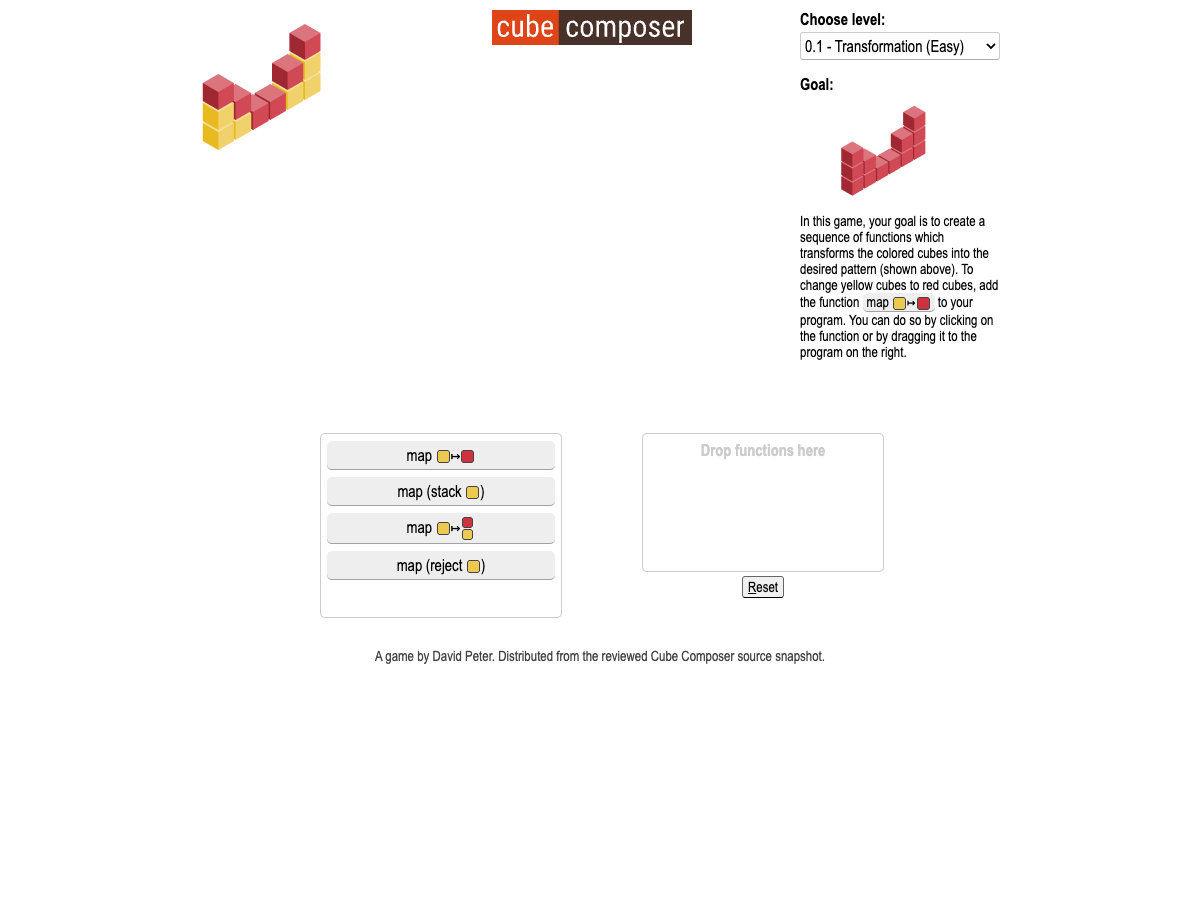
Solve 0.1: Transformation
The initial shape already has the correct outline, but some cubes are yellow while the target is entirely red. Stacking or removing cubes would change an outline that is already useful. The required operation is the map function whose yellow square points to a red square.
- Keep the default level, 0.1 — Transformation (Easy).
- Click the function showing yellow → red in the available list.
- Check the all-red output and the Solved check mark.
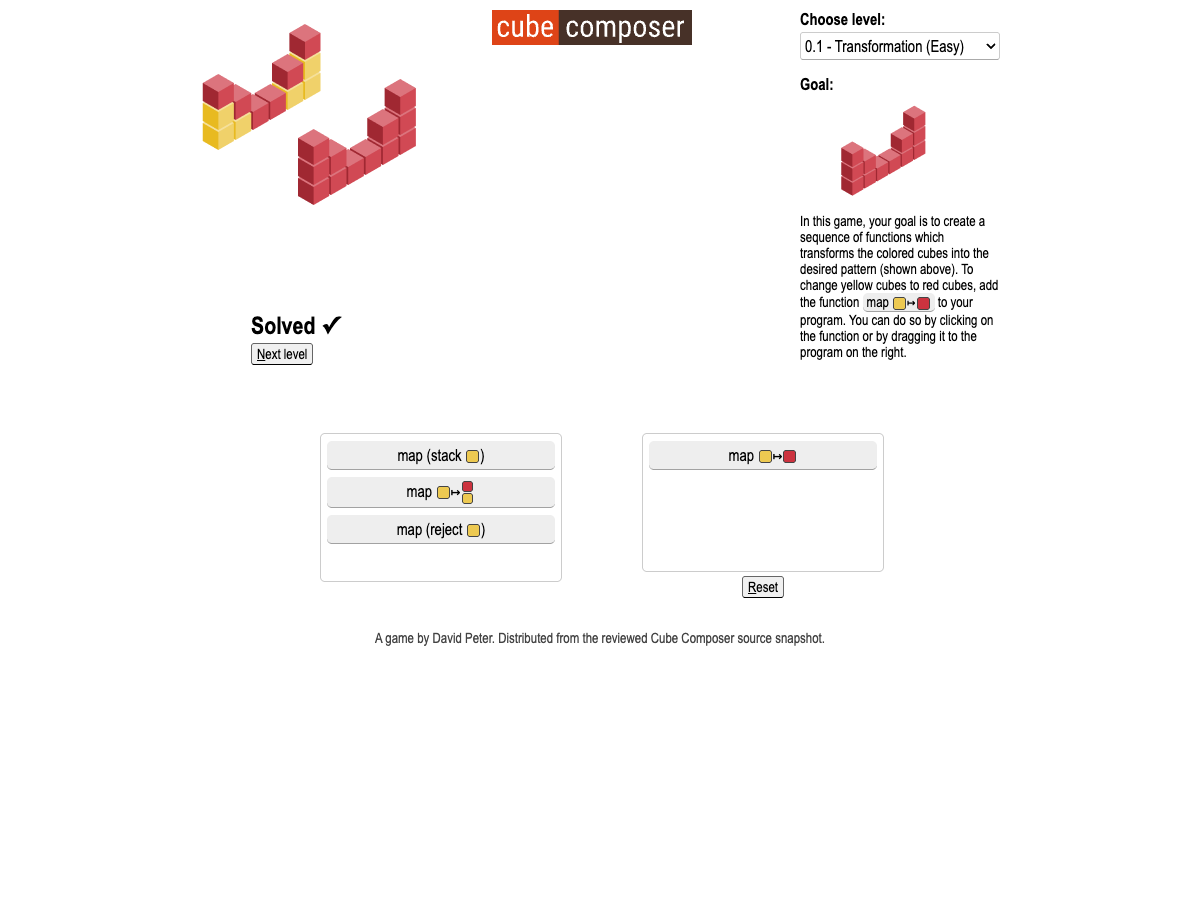
Solve 0.2: Rejection
Press N, press the right arrow, or use Next level to reach 0.2. This puzzle introduces reject: removing every cube of a specified colour. Compare the starting shape with the target and notice which cubes need to disappear.
Removing yellow cubes is different from turning them red. If you reuse the first puzzle’s colour replacement, the extra cubes remain in the output. This distinction becomes essential when later puzzles require several operations.
- Open 0.2 — Rejection (Easy).
- Choose map (reject yellow), identified by the yellow square inside the reject function.
- Confirm Solved before continuing to a composition puzzle.
Plan a sequence before adding everything
For later puzzles, break the target into small differences: colour, height, arrangement, or missing cubes. Choose one difference to fix, inspect the output, then decide what should happen next. Order matters because every function receives the previous function’s result.
You can use each available function once in the program. The final arrangement must match Goal exactly; simply using every function does not establish a solution. There is no countdown, life counter, or penalty screen for an unsuccessful program, so removing one step and comparing the result is a useful way to learn.
Reset, choose levels, and preserve a solution
Reset or R clears the current program. P or the left arrow visits the previous level; N or the right arrow visits the next. The level menu provides direct access to all 25 puzzles, including the later numeric chapter.
The game saves the current level and the programs you built in this browser when local storage is available. Returning to a solved level restores its program. Resetting a puzzle removes that puzzle’s current work, so read its successful sequence before clearing it.
Quick tips
- Compare the final output with Goal, not just the colours in the starting shape.
- Change one function at a time so you know which operation changed the result.
- Use the intermediate shapes to diagnose an incorrect program order.